


How to Reduce IPTV Buffering and Improve Streaming Quality in Finland
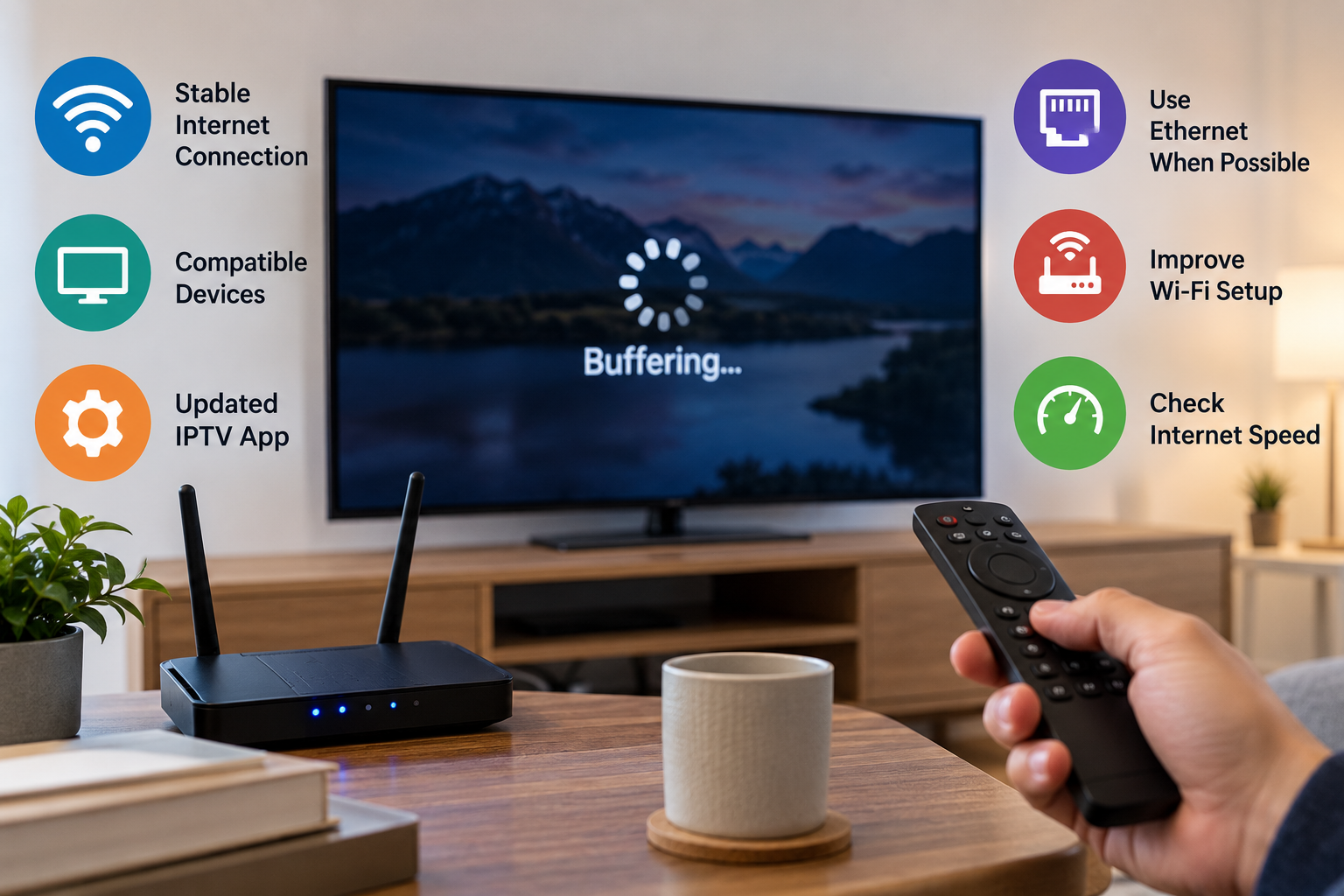
IPTV gives viewers a flexible way to watch live television, sports, movies, and series through an internet connection. However, the quality of the experience depends heavily on the home network, streaming device, IPTV application, and available bandwidth.
Buffering, frozen pictures, delayed channel changes, and sudden drops in video quality can make streaming frustrating. The good news is that many common IPTV performance problems can be improved by checking a few important parts of the setup.
This guide explains practical ways to improve IPTV streaming quality for viewers in Finland and other Nordic countries.
Understand What Causes IPTV Buffering
Buffering happens when a device cannot receive or process video data quickly enough to maintain continuous playback.
The IPTV player temporarily stores a small amount of video before showing it. If the incoming stream becomes slower than the rate at which the video is being played, the application may pause while waiting for more data.
Several factors can contribute to this problem.
Internet Connection Speed
Higher video resolutions generally require more bandwidth.
Standard-definition streams require relatively little data, while HD, Full HD, and 4K streams need progressively faster and more stable connections. A household may have a fast broadband package but still experience IPTV buffering if several devices are using the connection simultaneously.
Video calls, gaming, cloud backups, large downloads, and other streaming services can all reduce the bandwidth available to an IPTV device.
Test the Connection on the Streaming Device
A broadband package advertised at a certain speed does not guarantee that every device receives that speed.
Run an internet speed test on the television, streaming box, smartphone, or another device positioned near your IPTV equipment.
This gives you a more realistic picture of the connection available in the room where you actually watch television.
If the measured speed is significantly lower than expected, the problem may be related to Wi-Fi coverage rather than the IPTV application itself.
Use Ethernet When Possible
Wi-Fi is convenient, but Ethernet is often more consistent for fixed streaming devices.
Connecting a Smart TV, Android TV box, Apple TV, or compatible streaming device directly to the router can reduce problems caused by wireless interference.
A wired connection can be especially useful when:
-
The television is far from the router
-
Several walls separate the router and TV
-
Many devices share the wireless network
-
High-resolution streams frequently buffer
-
Wi-Fi performance changes throughout the day
Ethernet does not automatically solve every streaming problem, but it removes one common source of network instability.
Improve Your Wi-Fi Setup
A wired connection is not always practical. Fortunately, Wi-Fi performance can often be improved without replacing the entire network.
Move the Router
Place the router in a central and open location whenever possible.
Avoid hiding it inside cabinets or placing it behind large electronic devices. Walls, furniture, appliances, and other physical obstacles can weaken the wireless signal.
Use the Appropriate Wi-Fi Band
Modern routers commonly provide 2.4 GHz and 5 GHz Wi-Fi.
The 2.4 GHz band generally offers better range, while 5 GHz can provide faster speeds over shorter distances.
If the IPTV device is close to the router, testing the 5 GHz network may improve performance. Devices located farther away may sometimes perform more consistently on 2.4 GHz.
Consider a Mesh Network
Large homes or properties with several floors can have Wi-Fi dead zones.
A mesh Wi-Fi system can distribute the wireless signal through multiple access points, helping provide more consistent coverage in rooms that are far from the main router.
Choose a Suitable IPTV Device
The internet connection is only one part of IPTV performance.
Older Smart TVs and streaming boxes may have limited memory, slower processors, or outdated operating systems. These limitations can affect how quickly applications load channels and process high-resolution video.
Common IPTV-compatible devices include:
-
Smart TVs
-
Android TV devices
-
Google TV devices
-
Amazon Fire TV devices
-
Apple TV
-
Smartphones and tablets
-
Windows and Mac computers
Users researching IPTV services and device compatibility for the Finnish market can review information from Nordic One IPTV when comparing setup options, supported devices, and common IPTV configuration methods.
Keep the IPTV Application Updated
Outdated applications can sometimes create compatibility or performance problems.
Developers regularly release updates to improve playback, fix bugs, add device support, and maintain compatibility with operating system changes.
Check your device's official application store periodically for updates.
The operating system of the Smart TV, streaming box, or mobile device should also be kept reasonably current.
Restart Your Router and Streaming Device
Long-running routers and streaming devices can occasionally develop temporary network or memory problems.
Restarting both devices is one of the simplest troubleshooting steps.
Turn off the streaming device, restart the router, allow the internet connection to reconnect fully, and then start the IPTV device again.
This clears temporary processes and forces the equipment to establish a fresh network connection.
Close Unnecessary Applications
Streaming devices with limited memory can slow down when several applications remain active.
Close games, media applications, browsers, or other software that you are not using.
This is particularly relevant for lower-powered Smart TVs and older Android-based streaming devices.
Freeing available memory may improve application responsiveness and channel switching.
Understand IPTV Player Compatibility
An IPTV provider supplies access to the television streams, while an IPTV player is normally the application used to display and organize them.
Different players support different configuration methods.
Two common formats are M3U playlists and Xtream Codes.
M3U Playlists
An M3U playlist contains information that compatible media players use to locate and organize available streams.
The user normally enters or imports an M3U URL into the IPTV player.
Xtream Codes
Compatible players may allow users to log in using a server address, username, and password.
This method can automatically organize channels, categories, and other available information depending on the service and application.
Using the configuration method recommended for your particular service can simplify setup and reduce avoidable login problems.
Check the EPG Separately
An Electronic Programme Guide, or EPG, displays programme schedules and information.
If channels play correctly but programme information is missing, the streaming connection may not be the problem.
EPG data can depend on the IPTV provider, player configuration, and individual channel information.
Refreshing the guide or checking the application's EPG settings may resolve the issue without changing the network setup.
Avoid Heavy Network Usage While Streaming
Even a fast connection can become congested when many devices are using large amounts of bandwidth at the same time.
If IPTV buffering occurs mainly during busy periods, check whether someone else in the household is:
-
Downloading large files
-
Streaming 4K video
-
Playing online games
-
Uploading cloud backups
-
Making high-quality video calls
Temporarily pausing demanding activities can help determine whether local network congestion is causing the problem.
Match Video Quality to Your Connection
Always choosing the highest available resolution is not necessarily the best option.
A stable Full HD stream can provide a better viewing experience than a 4K stream that constantly pauses.
If your connection struggles with higher-resolution content, switching to a lower-quality stream can reduce bandwidth requirements and improve stability.
This can be particularly useful on mobile connections or crowded Wi-Fi networks.
Distinguish Device Problems From Service Problems
Good troubleshooting involves changing one factor at a time.
If a stream buffers on your Smart TV, test it on another supported device using the same internet connection.
If the second device performs normally, the Smart TV or application may be responsible.
If both devices experience the same problem, test the internet connection or restart the router.
When multiple channels experience problems across several devices despite a stable connection, the issue may be outside the local network.
This step-by-step approach makes it easier to identify the actual cause instead of repeatedly changing settings.
Final Thoughts
Smooth IPTV streaming depends on several elements working together. A fast internet package alone cannot compensate for weak Wi-Fi, an outdated streaming device, incompatible software, or heavy network congestion.
Start with the basics. Test the connection near the television, use Ethernet when practical, improve Wi-Fi coverage, keep applications updated, and choose a device capable of handling the video quality you want to watch.
By troubleshooting the network, device, and IPTV player separately, viewers can identify performance problems more accurately and create a more reliable streaming setup for everyday entertainment.
